

About this Event
This 90-minute interactive workshop introduces participants to the practical use of Large Language Models (LLMs) for text classification tasks using real-world geotagged data. Participants will learn how to leverage Python and the LM studio to interact with advanced AI models such as Gemini, gaining foundational experience in calling Open AI APIs, designing effective prompts, and integrating LLMs into data workflows.
The workshop will take place in the Yale Center for Geospatial Solutions Earth Observation Lab (EOL) next door to the Peabody Museum. A limited number of computers will be available to workshop attendees. Otherwise, a personal laptop will be required. Please note that both a Google and Hugging Face account will be required for the workshop. Basic python programming skills are expected. Registration will be available during GIS Day check-in at the Peabody and is first come, first served.
Before the workshop — account creation
Step 1. Create a Google account(skip if you already have one)
Google Colab and Google Drive both use your Google account. A personal Gmail account works best; some university Google Workspace accounts have Colab turned off.
- Go to (or click Create account on any Google sign-in page and choose For my personal use).
- Enter your first and last name and click Next.
- Enter your date of birth and gender, then click Next.
- Choose a Gmail address (or select Use your existing email) and click Next.
- Create a password, confirm it, and click Next.
- If asked, enter a phone number and type the verification code Google sends you.
- Review the recovery information, then read and agree to the Privacy and Terms.
- Check it worked: open . You should see the Colab start page with your account icon in the top-right corner.
Step 2. Create a Hugging Face account
Hugging Face hosts the Gemma 4 model that the notebook downloads.
- Go to .
- Enter your email address and a password, then click Next.
- Choose a username, enter your full name, accept the Terms of Service and Code of Conduct, and click Create Account.
- Open the confirmation email from Hugging Face and click the verification link.
Tip: Gemma 4 is released under the Apache 2.0 licence. If its model page (huggingface.co/google/gemma-4-E2B-it) shows a box asking you to agree to share your information or accept a licence, click the button to accept it with the same account. You must do this for the previous model, Gemma 3, if you switch to it.
Step 3. Create a Hugging Face access token
A token lets the notebook download models as you rather than anonymously, which avoids download limits and is required for gated models.
- Click your profile picture (top-right) → Settings → Access Tokens, or go to .
- Click + Create new token.
- Choose the Read token type, name it (for example Gemma), and click Create token (Figure 1).
- Click Copy (Figure 2) and save the token somewhere private. You will not be able to see it again after closing the window — if you lose it, create a new one.
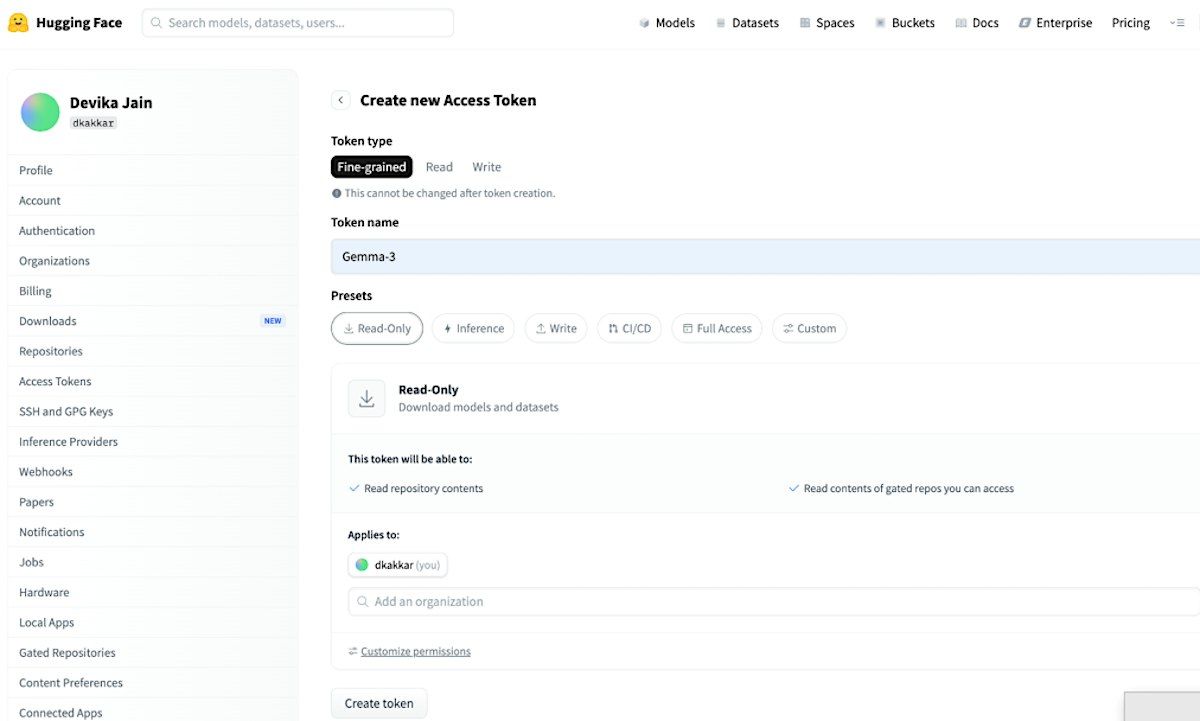
Figure 1. Hugging Face → Settings → Access Tokens → + Create new token.
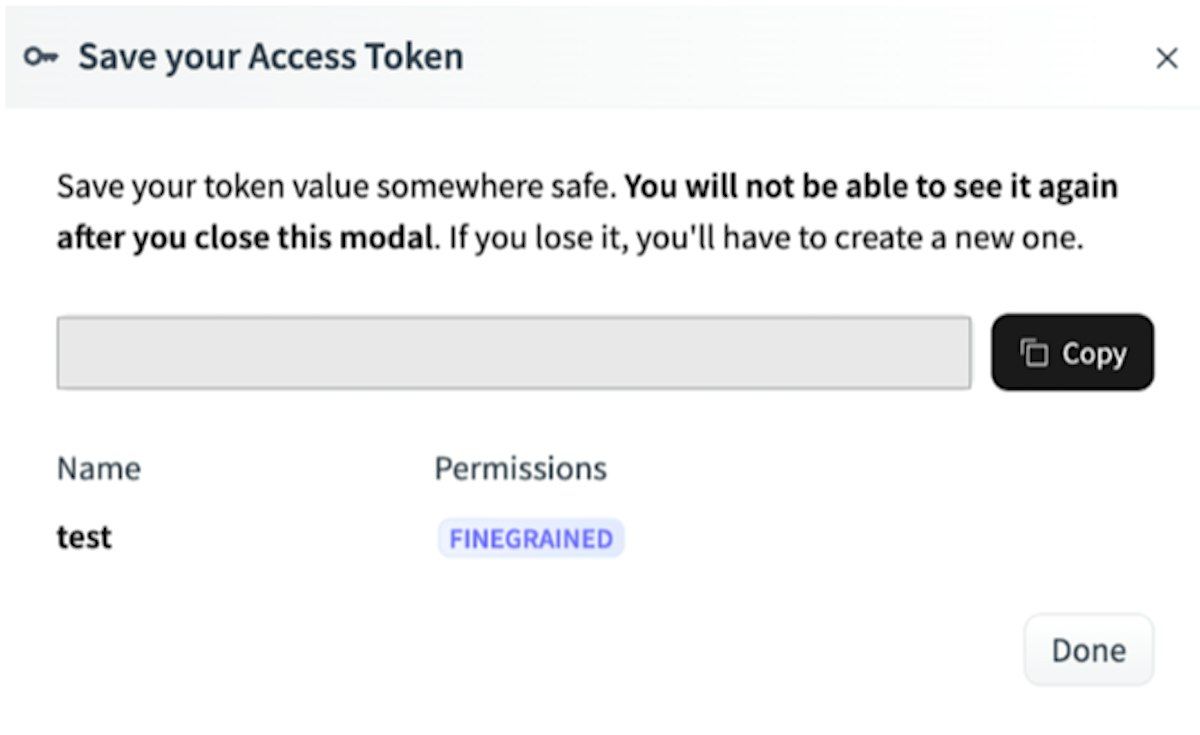
Figure 2. Copy the token value (it starts with hf_). The value is hidden here on purpose.
Important: treat your token like a password. Never paste it into a notebook cell, a chat, a slide or a screenshot. If a token is ever exposed, delete it on the Access Tokens page and create a new one.
Event venue & nearby stays
21 Sachem St, 21 Sachem Street, New Haven, United States
 Concerts, fests, parties, meetups — all the happenings, one place.